
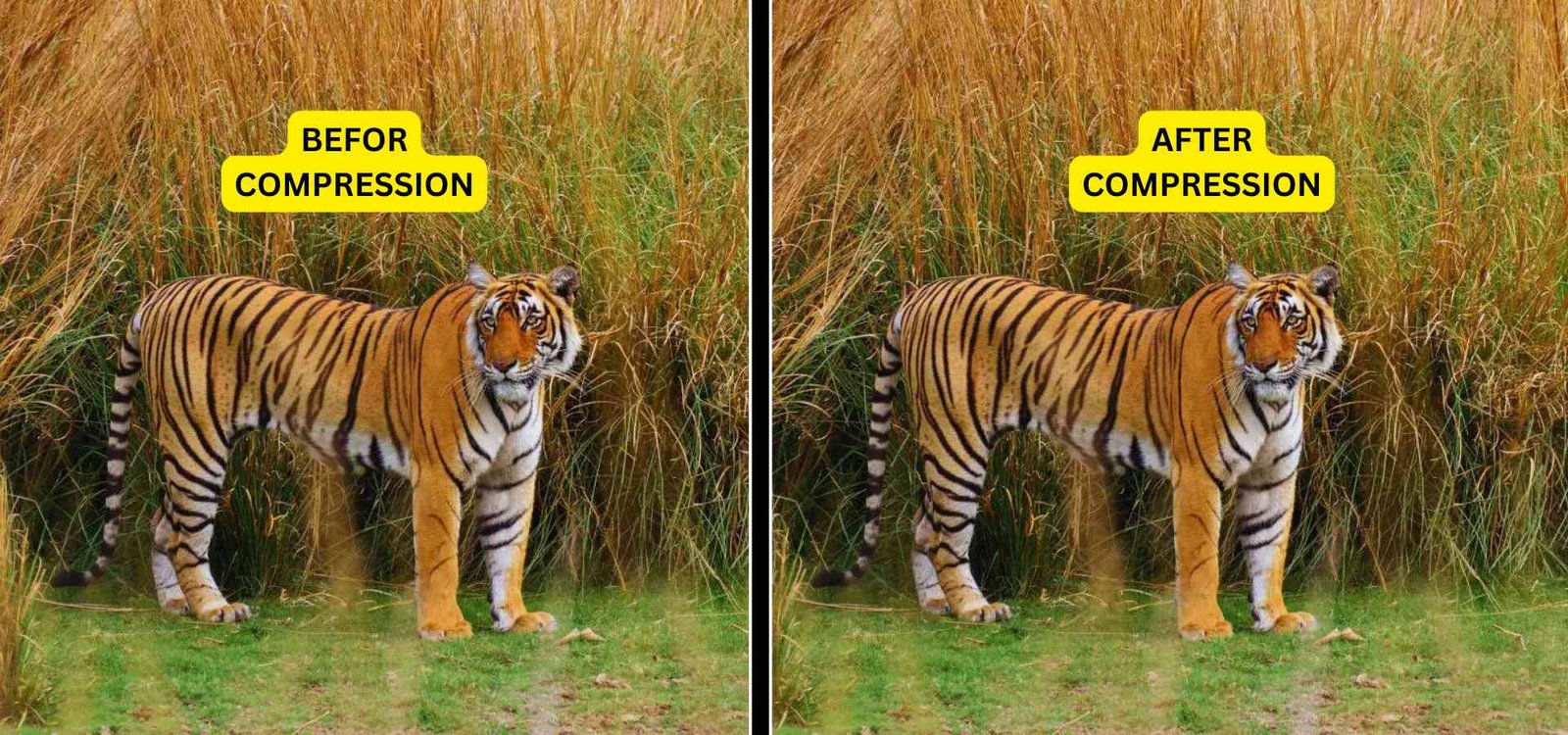
We have all been there. You capture a fantastic photograph, but when you look closely, there is a distracting trash can in the corner, or the subject is just a little too far away. Or perhaps you are trying to upload a wide landscape photo to your Instagram grid, and the app awkwardly squishes it to fit.
You do not need to reshoot the photo, and you definitely do not need to download heavy, complicated editing software. You just need to crop image files to isolate the best parts of your visual.
In this high-signal guide, we will break down the exact aspect ratios you need for modern social media, clarify the massive difference between cropping and resizing, and show you exactly how to crop picture online securely in a matter of seconds.
The Cold Hard Data: Cropping vs. Resizing vs. Compressing
One of the biggest mistakes digital creators make is confusing the three main pillars of image optimization. If you do not know the difference, you risk blurring your photos or ruining your website's loading speed.
Before you crop and image compress your files, you need to understand exactly what each tool actually does:
| Action | What It Actually Does | When to Use It |
|---|---|---|
| Crop Image | Cuts away the outer edges to change the visual composition. | To remove photobombers, fix framing, or fit a specific aspect ratio (like a 1:1 square). |
| Resize Image | Shrinks the physical dimensions (e.g., from 4000px wide to 800px wide) without cutting anything out. | To make a massive 4K photo fit neatly inside a standard blog post column. |
| Compress Image | Reduces the actual file data weight (Megabytes to Kilobytes) while maintaining dimensions. | Always. Use this before uploading anything to a website to guarantee fast loading speeds. |
Aspect Ratio Cheat Sheet: Target the Right Shape
When you use a tool to crop image online, you shouldn't just guess the shape. Social media platforms and website builders have strict dimension requirements. If you do not crop your images to their specific aspect ratios before uploading, their automated systems will blindly hack off parts of your photo.
Here are the exact aspect ratios you should use when online cropping for digital platforms:
- 1:1 (Square): The gold standard for Instagram grids, LinkedIn profile pictures, and standard e-commerce product thumbnails.
- 16:9 (Widescreen): The mandatory shape for YouTube video thumbnails, desktop wallpaper, and large website hero banners.
- 9:16 (Vertical Video): The exact dimensions you need for Instagram Reels, TikToks, and YouTube Shorts.
- 4:5 (Portrait): The optimal ratio for standard Facebook and Instagram feed posts because it takes up the maximum amount of vertical screen real estate on mobile phones.
The Privacy First Approach to Online Cropping
Many people jump to Google and look for a quick way to crop pic online, clicking the first link they see. This is incredibly risky if you are editing personal family photos, unreleased product shots, or confidential business documents. Standard cloud-based cropping tools force you to upload your images to remote servers where you have zero control over data retention.
At Free Pic Compressor, we engineered our cropping tool to run entirely client-side. Using advanced HTML5 technology, the digital scissors live inside your web browser. You can cut out a picture flawlessly without a single byte of your visual data ever being transmitted across the internet.
Step-by-Step: How to Crop Picture Online in Seconds
We have eliminated the complex menus and frustrating layers found in traditional software like Photoshop. Here is the frictionless workflow to perfect your image composition:
- Secure Local Upload: Drag your JPG, PNG, or WebP file directly into our browser-based workspace.
- Set Your Frame: Click and drag the interactive cropping box over your image. You can freehand the crop to remove specific distractions, or lock the tool to standard aspect ratios (like 1:1 or 16:9) for perfect social media sizing.
- Execute the Cut: Once your subject is perfectly framed inside the grid, hit apply. The tool will instantly trim away the excess pixels locally.
- Download and Optimize: Click save to download your newly composed image.
Pro-Tip: Trimming the edges of a massive DSLR photo won't always reduce the file size enough for a fast website. Once you have the perfect crop, immediately drop the new file into our Pic Compressor tool to strip out hidden metadata and shrink the file weight by up to 80%!
Frequently Asked Questions (FAQs)
How do I crop image online for free?
Simply drag your photo into the Free Pic Compressor cropping tool, adjust the bounding box to frame your subject, and click save. The process is completely free and requires no account.
Will online cropping make my picture blurry?
No. Cropping only removes the outer edges of a photo. The pixels that remain inside your selected frame are completely untouched, meaning the visual crispness of your subject stays exactly the same.
Can I cut out a picture to make the background transparent?
Cropping a picture only changes its square or rectangular boundaries. If you want to actually isolate a person and remove the background entirely (leaving it transparent), you need to use our dedicated AI Background Remover tool instead.
What is the best aspect ratio for a blog post?
For standard article featured images, a 16:9 widescreen ratio or a 4:3 standard ratio works best. Be sure to use our tool to crop pic online uniformly so all the thumbnails on your blog page match perfectly.