
You just found the perfect image online for your presentation or blog post. You right-click, hit "Save Image As," and open your downloads folder, only to realize the file doesn't end in .jpg or .png. Instead, you are staring at a strange .webp file that your desktop photo viewer refuses to open.
This is one of the most common frustrations in modern digital workflows. While this next-generation image format is fantastic for website speed, it is an absolute nightmare for offline editing, printing, and sharing.
The easiest fix is to simply convert WebP to JPG.
In this high-signal guide, we will break down exactly what this format is, why your software is rejecting it, and how you can use a secure online WebP to JPG converter to fix your files in less than three seconds.
What is WebP? (And Why is it Everywhere?)
If you find yourself constantly needing to convert a WebP to JPG, you can blame Google.
Google developed the WebP image format specifically to make the internet faster. WebP uses highly advanced predictive coding to compress images. The result is a file that looks exactly like a high-resolution JPEG, but takes up roughly 30% less data. For website owners, swapping out a WebP for JPG means their pages load instantly, which boosts their SEO rankings.
But this web-first engineering is exactly why you need to translate the code. If you want to use that image outside of a web browser, you need to change the WebP format to JPG.
Here is exactly how the two formats compare in the real world:
| Feature | WebP Format | JPG / JPEG Format |
|---|---|---|
| Best Used For | Fast website loading, SEO optimization | 100% universal sharing, printing, offline editing |
| Software Compatibility | Rejected by many legacy photo viewers and older OS | Opens seamlessly on every device in the world |
| Social Media Uploads | Often fails on Instagram, LinkedIn, and older forums | The gold standard for all social media uploads |
Use Cases: Who Needs to Convert These Files?
If you only browse the web, you might never notice the WebP format. But the moment you try to use a downloaded image for a personal or professional project, you will hit a roadblock.
Here are the most common scenarios where you must change a web file to JPG:
- Presentation Builders & Students: If you are building a slide deck in Microsoft PowerPoint or Apple Keynote and try to drag a WebP image onto your canvas, you will often get an "unsupported format" error. By translating the WebP into JPEG format first, your slides will look perfect and share without glitches.
- Graphic Designers & Print Shops: Older versions of Adobe Photoshop and Illustrator natively reject WebP files. Furthermore, if you are sending a flyer design to a local print shop, their massive commercial printers require standard formats. You must convert a WebP to JPG before submitting your final print files to guarantee accurate ink colors.
- Video Editors & Content Creators: Whether you downloaded a stock graphic, or are trying to convert a video thumbnail or webrip to JPG to use in your video timeline, Premiere Pro and Final Cut often struggle with pure web formats. A quick conversion to JPEG ensures your video editing timeline stays smooth and error-free.
Step-by-Step: Secure, Client-Side Conversion
Many people search for an online WebP to JPG converter and use the first random cloud-based site they find. This is risky. Uploading files to remote servers leaves your data vulnerable and wastes your time waiting for uploads to finish.
At Free Pic Compressor, our conversion technology runs entirely client-side. This means the translation from web-code to standard JPEG happens locally inside your own web browser's memory. It is incredibly fast, and your files are never uploaded to our servers, ensuring 100% data privacy.
Here is how to fix your file compatibility in three easy steps:
- Locate Your File: Find the stubborn .webp image in your downloads folder.
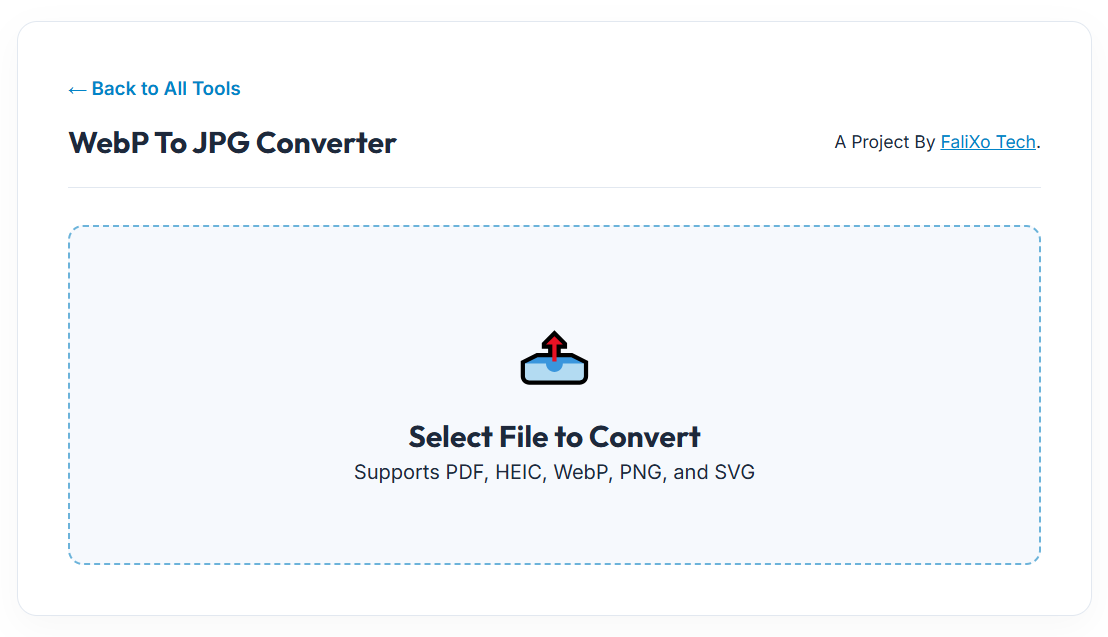
- Secure Drag & Drop: Pull the file directly into our secure, browser-based workspace.
- Instant Translation: Our engine instantly reads the predictive web coding and reconstructs the image as a universally accepted JPEG standard.
- Download and Use: Click save. Your image is now ready to be printed, edited in Photoshop, or uploaded to any social media platform without a single error message.
Pro-Tip: JPEGs are universally compatible, but they are slightly heavier files than WebP. If you are planning to re-upload this new JPEG back onto a website, make sure you drop it into our Pic Compressor tool first to strip out unnecessary metadata and keep your website running lightning fast!
Frequently Asked Questions (FAQs)
How do I convert WebP to JPG for free?
Simply navigate to our secure browser tool, drag your downloaded image into the drop zone, and let our local engine translate the file into a high-quality JPEG instantly. No accounts or software downloads are required.
Will I lose visual quality when I convert WebP to JPG?
No. A high-quality converter simply translates the data structure. The image pixels, crispness, and vibrant colors will look exactly identical to the original file.
Can I rename the file extension from .webp to .jpg manually?
No, you should never do this. Renaming the extension does not actually change the internal code of the file. It will just corrupt the image and cause permanent error messages on your computer. You must use a true converter to restructure the data.
Is it safe to use an online WebP to JPG converter?
It is only safe if you use a client-side tool like Free Pic Compressor. Our software processes the image on your local device, guaranteeing that your private files and downloads are never stored on a foreign cloud server.